Does my whole team need to pay for the Business plan?
Nope. One IT admin subscribes to Business, and all users in your Microsoft 365 tenant automatically get the org-configured destination. End users just need to download SpSnap for free.
What happens if my upload is interrupted by poor signal?
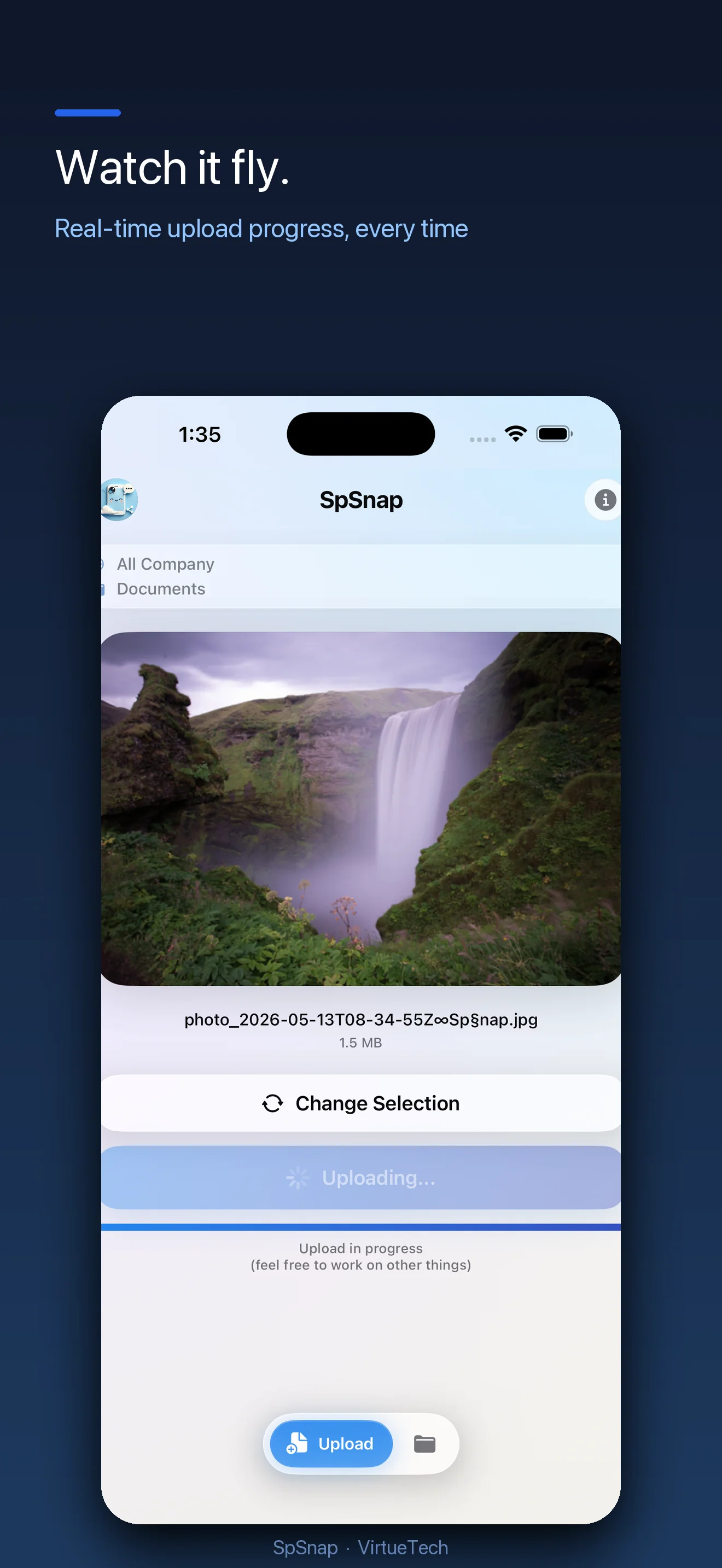
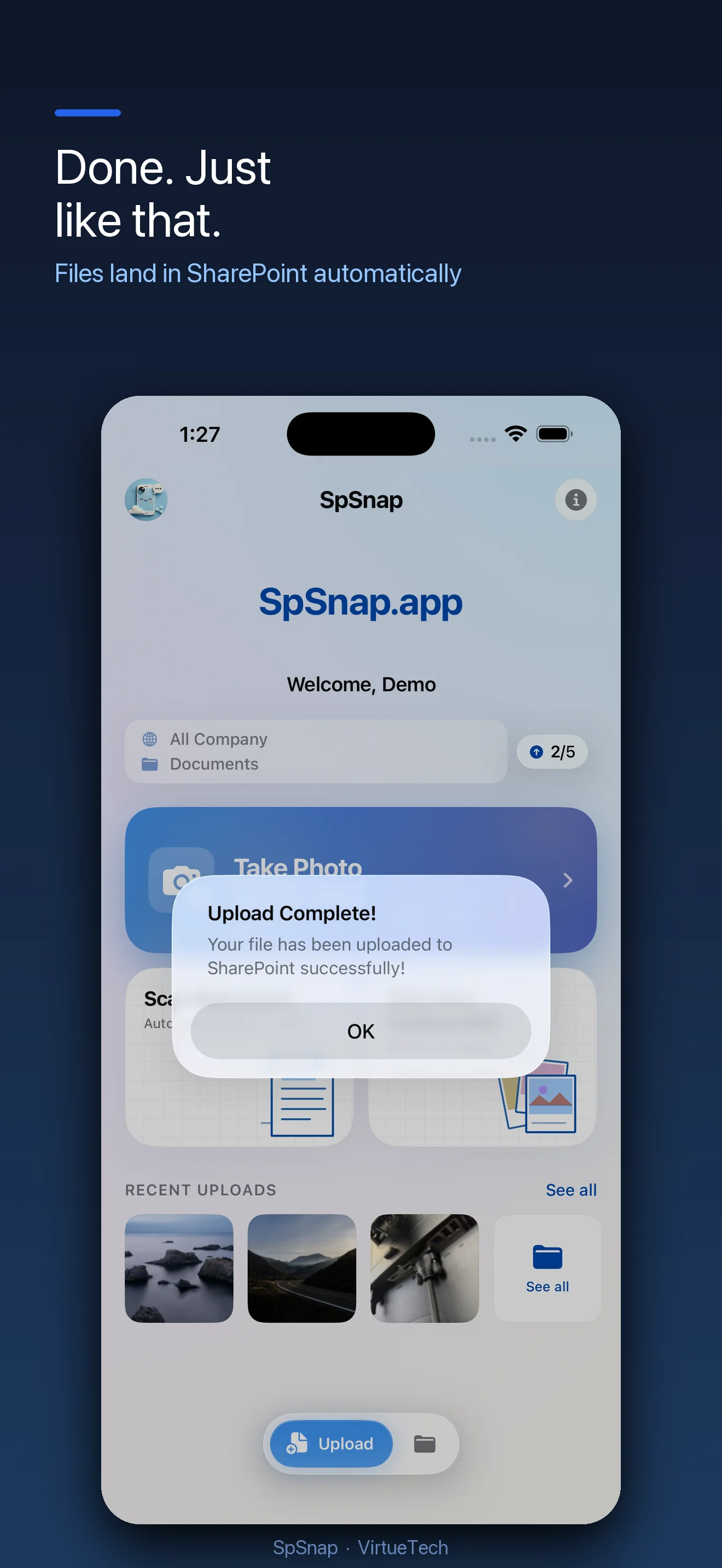
SpSnap uses iOS background URL sessions, so uploads are handled by the OS, not the app. If signal drops, iOS queues the retry automatically. You'll get a push notification when the upload completes.
Is my data secure? Does SpSnap store my files?
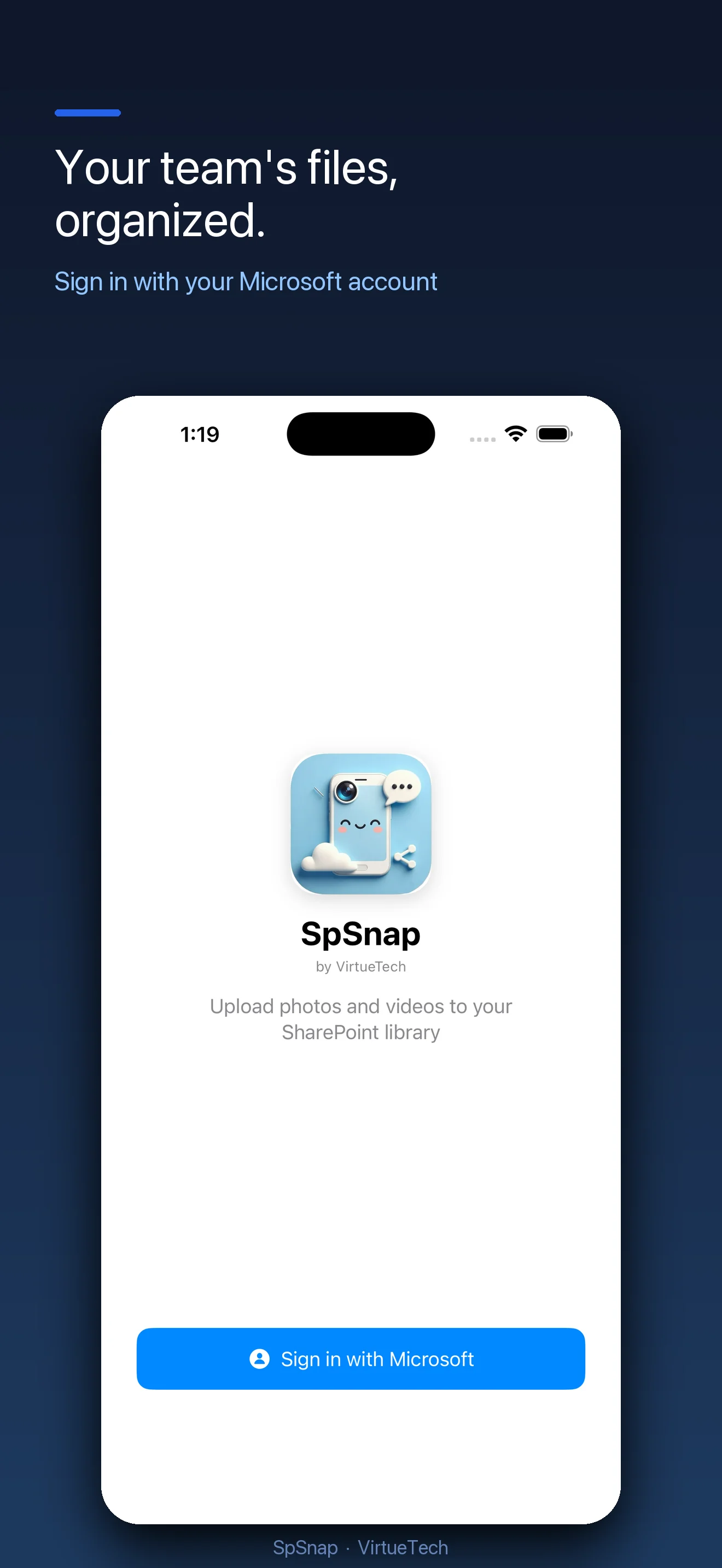
SpSnap never stores your files. Uploads go directly from your phone to your SharePoint library via the Microsoft Graph API. Authentication uses MSAL (Microsoft Authentication Library) with your existing M365 credentials. No new passwords, no separate account.
Which SharePoint sites can I upload to?
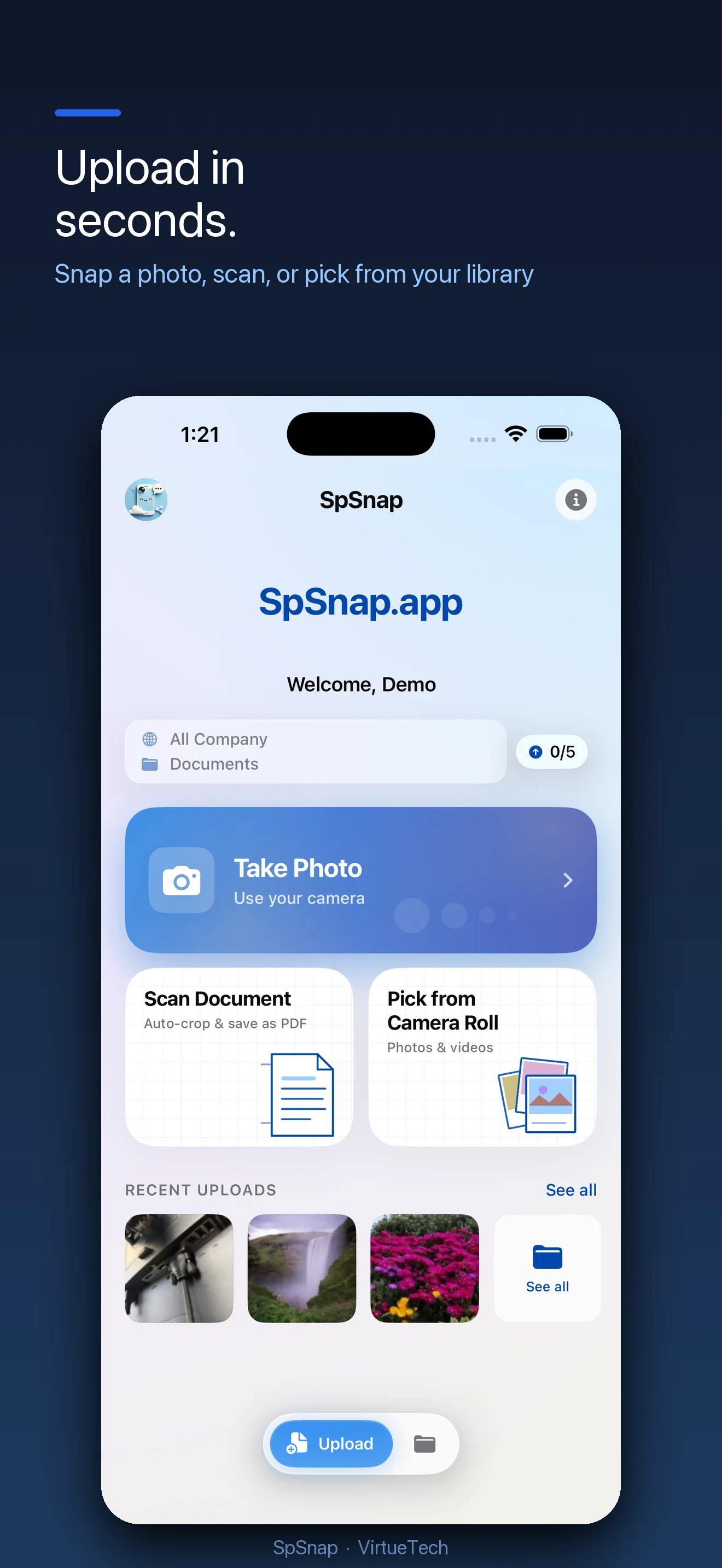
Any SharePoint site and document library your Microsoft 365 account has write access to. For Business plans, your IT admin sets the destination and users can't change it (great for compliance).
What's the Business+ group routing feature?
If your org has multiple departments using different SharePoint libraries, Business+ will let you map Microsoft 365 groups to specific libraries. A Sales group member automatically uploads to the Sales library. A Field Tech automatically uploads to Operations. No user configuration required. This feature is coming soon. Interested? Request early access and we'll notify you when it's available.
Does SpSnap work with personal Microsoft accounts?
SpSnap is designed to reduce the complexity of uploading photos and videos to SharePoint from your iPhone. It works with Microsoft 365 work or school accounts — the same accounts used to access SharePoint, Teams, and OneDrive for Business. Personal Microsoft accounts (Outlook.com, Hotmail, Live.com) are not supported.
Do Microsoft 365 guest accounts work with SpSnap?
Not yet. Guest accounts (external users invited into another organization's M365 tenant) authenticate against their home tenant, which means they can't be covered by a host org's Business subscription. Guest account support is planned for a future Business+ update. If this is a blocker for your team, let us know so we can prioritize it.
Who can purchase Business and Business+ plans?
Business and Business+ plans cover your entire Microsoft 365 organization, so they must be purchased by someone with a Global Administrator or Billing Administrator role in your M365 tenant. When a qualifying admin purchases the plan in the app, it automatically applies to all users in the organization — no per-user setup needed. If you're not sure who your admin is, check with your IT department or look in the Microsoft 365 admin center.